|
What is the Renter's
Checklist? |
| Tips to make your vacation
rental a success! FindVacationRentals.com has compiled a simple
checklist to help you plan for your perfect vacation rental. |
| |
|
What is My Places? |
| My
Places is a vacation renter’s saved rental listings. My Places allows
vacation renters to save vacation rentals while browsing the
FindVacationRentals.com website. |
| |
|
How do I save vacation
rentals to My Places? |
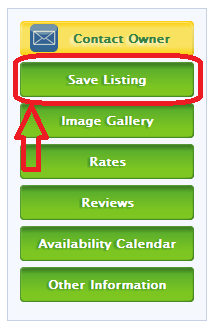
| To take advantage of the My
Places feature simply login to Renter's Corner and begin browsing the
FindVacationRentals.com website.
If you are interested
in a vacation rental listing while browsing simply click on the Add to
My Places button. This will save the listing in you’re My Places Folder. |
| |
|
 |
| |
|
How do I view vacation
rental I saved to My Places? |
| You
may easily retrieve your saved vacation rentals in the future by logging
into Renter's Corner and clicking on the My Places link. You will then
see all vacation rentals you have saved in your My Places folder |
| |
|
What is an Owner's
Specials? |
| Owner's Specials are
discounts offered by vacation rental owners/managers in the case of a
last minute cancellation or for periods that are not rented or out of
season. |

| |
|
How does the Owner's
Specials feature work? |
| Simply complete an Owner's
Specials profile (Desired Vacation Rental City, Arrival and Departure
Date, Bedroom #'s, etc...) in Renter's Corner. You can then search all
Owner's Specials that match your Owner's Specials profile. Additionally,
you can opt to be emailed every time a vacation rental owner/manager
adds an Owner's Specials that matches your profile. |
| |
|
How do I add an Owner's
Specials profile? |
| Adding an Owner's Specials
profile is simple! Simply login to Owner's Corner and click on the Add a
New Owner’s Specials Profile link. Complete the form and view all
Owner's Specials that match your profile. |
| |
|
How do I update an
Owner's Specials profile? |
| As your vacation plans
change simply update your Owner's Specials profile to view all Owner's
Specials that match your new profile. To update your Owner's Specials
profile simply login to Renter's Corner and click on Owner's Specials.
Then find the profile you wish to update and click on the link titled
Update Profile. Update your profile and and click on the Submit button
at the button of the page to update your changes. Then you can view all
matches to your new profile. |
| |
|
How do I delete an
Owner's Specials profile? |
| Your vacation unfortunately
got cancelled or you have now returned from a vacation? You can easily
delete any Owner's Specials profiles that are no longer need. To delete
an Owner's Specials profile simply login to Renter's Corner and click on
Owner's Specials. Then find the profile you wish to delete and click on
the link titled Delete Profile. The Owner's Specials profile is now
deleted. |
| |